Sometimes when the encrypted computer does not boot and no rescue CD/USB is available or just for troubleshooting purposes it might be required to use Windows Live CD with BCVE plugin pre-installed. Here is how:
1. Download Windows Live CD with BestCrypt Volume Encryption plugin
https://www.dropbox.com/scl/fi/3uv2l2509twwh9f8y5cwb/Win10PESE_v.5.3.iso? another PC
2. Create a bootable USB stick using your favorite ISO burning tool or our favorite: https://rufus.akeo.ie/
3. If you decide to use Rufus, here is a quick guide: 
4. Configure the target PC to boot from USB. This can be done by setting USB as the first device in BIOS Boot Order or selecting the USB from Boot Options directly.
5. The system will boot in a Windows-like environment. Click Start --> All Programs --> BestCrypt Volume Encryption
6. BestCrypt Volume Encryption will open. Ignore any error warning messages by closing them.
7. Right-click on volume C: and select 'Decrypt'. You will be prompted for a password, then the decryption process starts.
8. Wait for the process to complete, shut down the Live CD, revert BIOS changes (if any) and boot normally.
Important additions based on test results
1) The file Win10PESE_v.5.3.iso contains no magic; it's simply BCVE Traveller files added to the contents of the base WinPE.
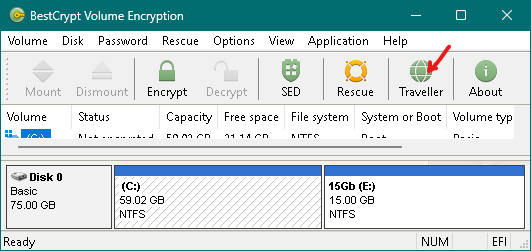 | Any BCVE user can create such a set of files by clicking the [Traveller] button on the toolbar or via the menu Application->Traveller mode files. The Traveller in this WinPE image was generated in BCVE v5.04. |
2) After booting Win10PESE, Traveller from a newer version can be launched from an external source: USB or from the network.
If you're not sure, you can copy its files to the temporary RAM-disk B: or system RAM-disk X:
A USB created with the Rufus utility will work perfectly for copying the Traveller folder onto it.
3) You can directly edit Win10PESE_v.5.3.iso and place the latest current version of Traveller in the .\Programs\BCVE\ folder instead of v5.04.
A cautious user can place the current Traveller in a separate folder and launch bcfmgr.exe via the explorer.
You can edit the ISO with VIO ISO Editor - https://apps.microsoft.com/detail/9ppf4c4lx018 or choose from many similar programs on the internet.
4) Win10PESE is not the only example of WinPE in which BCVE-Traveller runs successfully; you can integrate it into your own images, as long as they are not too primitive (WinPE for Windows installation is not applicable).
5) If in a difficult situation your goal is to extract some data from an encrypted volume rather than fully recover it,
try Mount first instead of jumping straight to Decrypt.
Was this article helpful?
That’s Great!
Thank you for your feedback
Sorry! We couldn't be helpful
Thank you for your feedback
Feedback sent
We appreciate your effort and will try to fix the article